 harlemlive-orgs
> databases
harlemlive-orgs
> databasesUpdating the Staff Info on the Internet
To start, you need to be connected to the following servers > directories:
harlemlive-orgs
> databases
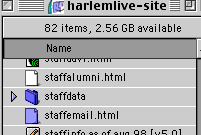 harlemlive-site
> staffdata
harlemlive-site
> staffdata
You'll next need to open up the database you want to be updated (advisors or staffinfo)
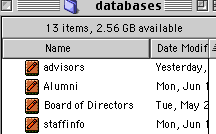
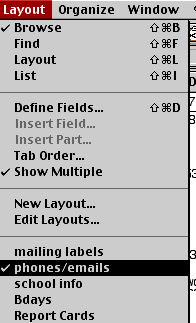
After opening (double click on) the database, go to the layout menu, and choose phones/emails
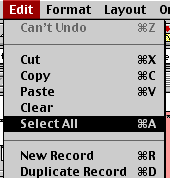
Then you want to select all by going to the EDIT menu and choosing 'Select All'
It should look something like this:

Now go to the EDIT menu and select "Copy"
You may then close this window/file. If it asks you to save, click "Don't Save"
NOW, you must go to the harlemlive-site server.
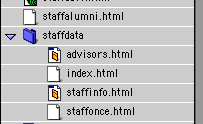
Open the file called staffinfo.html (or the advisors.html) in the staffdata directory. Then, Select All (under the Edit Menu). Then Click the DELETE key. Then go to the EDIT menu and select "PASTE.".
Go the file menu and choose "SAVE".
Close the file.
Next, you'll need to open the application called FETCH.
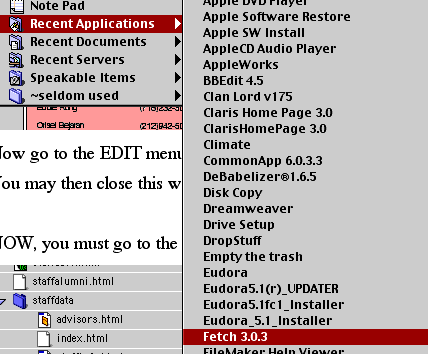
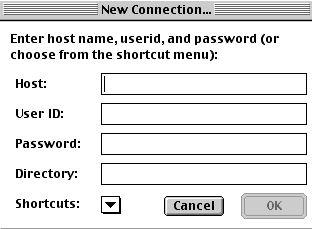
 Once
FETCH is open, click on the little triangle
Once
FETCH is open, click on the little triangle
You want to select the choice that says HarlemLive and then it should look like this:
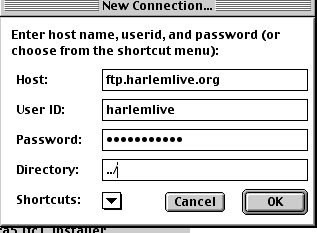
 After
the ../ in the Directory field, type staffdata as you see in the
image
After
the ../ in the Directory field, type staffdata as you see in the
image
Click OK
It should look like this:
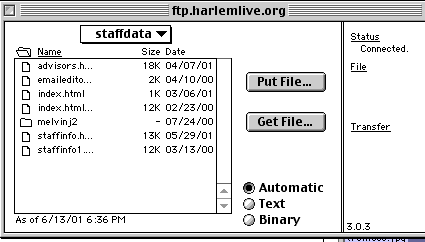
Next you want to drag and plop the file staffinfo.html (or advisors.html) to the FETCH window where it'll load to the internet server.
Now you can go the URL http://www.harlemlive.org/staffdata
choose either Staff or Advisors.. and you'll see that the list was updated.