



Tables
You should already have created two files, cafe.htm and menu.htm. We'll use the menu.htm file to illustrate some points about tables. The basic tables tags are these:
    <TABLE>    specifies the start of the table description
    <TR>       specifies the start of a row in the table
    <TH>       specifies a header
    <TD>       specifies a data cell
Each opening tag has its corresponding closing one </TABLE>, </TR>, </TH> and </TD>
- edit your menu.htm file to look like this:
<HTML>
<HEAD>
<TITLE> restaurant </TITLE>
</HEAD>
<BODY>
<H1>Alice's Tasty Treats...</H1>
<TABLE>
<TR>
<TH>Item</TH>
<TH>Price</TH>
</TR>
<TR>
<TD>Grits on Toast</TD>
<TD>£2.95</TD>
</TR>
<TR>
<TD>Seaweed Soup</TD>
<TD>£1.50</TD>
</TR>
</TABLE>
</BODY>
</HTML>
- view your page - it should look something like:

This might seem like a lot of effort to end up with something quite simple. Tables, though, are powerful tools if you want to maintain control over the layout and appearance of your pages. We will use them extensively and you should try to get to know them and love them...;-)
So what's the difference between the <TH> and <TD> tags? Well the answer is 'not much'. The <TH> tag simply centres any text and puts it in bold type, which may or may not be what you want.
Incidentally, if you want any text to appear in bold type then you can use tags like this:
<B>this will be in bold type</B>
...or if you want italics then use this:
<I>this will be in italics</I>
...and if you want bold italics then use this:
<B><I>this will be in bold italics</I></B>
Anyway, back to the table. It can be centred on the page by creating a page 'division', or section, using the <DIV> tag and including the table definition as part of it, like this:
<DIV ALIGN="center">
<TABLE BORDER=1>
<TR>
<TH>Item</TH>
<TH>Price</TH>
</TR>
<TR>
<TD>Grits on Toast</TD>
<TD>£2.95</TD>
</TR>
<TR>
<TD>Seaweed Soup</TD>
<TD>£1.50</TD>
</TR>
</TABLE>
</DIV>
We've also added a border and you'll notice the occasional blank line and indentation to make it more readable...
- make the changes and view the result...
So the <DIV> tag allows you to align the table left right or centre.
How about a splash of colour? Here are one or two more changes...
<DIV ALIGN="center">
<TABLE BORDER=1 BGCOLOR="#66FF66" CELLPADDING=5 CELLSPACING=5>
<TR>
<TH>Menu Item</TH>
<TH>Price</TH>
</TR>
<TR>
<TD>Grits on Toast</TD>
<TD>£2.95</TD>
</TR>
<TR>
<TD>Seaweed Soup</TD>
<TD>£1.50</TD>
</TR>
</TABLE>
</DIV>
- view your page now...
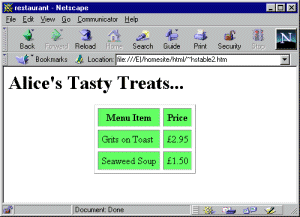
<CELLPADDING> forces extra space inside the cell around the text, and
<CELLSPACING> forces extra space between the cells.
You can colour a single row like this...
<TR BGCOLOR="#009933">
...or a single cell like this...
<TD BGCOLOR="#009933">
You'll have noticed that, so far, we have done nothing to say how wide the table should be and, in fact, your browser has decided that for you. Browsers differ in the way that they deal with table widths and this has always been a source of some concern to web designers.
It is possible for you to specify how wide you'd like the table to be - that's the good news; we'll see how it's done in a moment. The bad news is that you will not always get what you want because for some inexcusable reason - and this is true of both Netscape Navigator and Internet Explorer - the browser will often 'overide' your specification on the apparent basis that 'it knows best'. Now where have we heard that before?
There are some things you can do to reduce the problem but, in general, this area is a bit of a black art and you usually end up with some sort of compromise...
So, there are two ways to specify a table width: one is to use a number of pixels, the other is to use a percentage. Let's say that we'd like our table to be 50% of the screen width. Let's also decide that we'd like the left hand table column to be 75% of the table width, leaving 25% for the right hand column...
Notice we've changed the <TH> tag to a <TD> one - and don't forget to centre the table on the page.
- edit your menu.htm file to look like this
<TABLE WIDTH="50%"; BORDER=1>
<TR>
<TD WIDTH="75%";>Item</TD>
<TD WIDTH="25%">Price</TD>
</TR>
<TR>
<TD>Grits on Toast</TD>
<TD>£2.95</TD>
</TR>
<TR>
<TD>Seaweed Soup</TD>
<TD>£1.50</TD>
</TR>
</TABLE>
- view the results
You can specify colours for the table, a specific row in the table, or even a specific cell - simply include the colour in the appropriate tag, like this:
<TABLE WIDTH="50%" BORDER=1 BGCOLOR="#336699">
or
<TR BGCOLOR="#6699CC">
or
<TD BGCOLOR="#FF3333">Seaweed Soup</TD>